
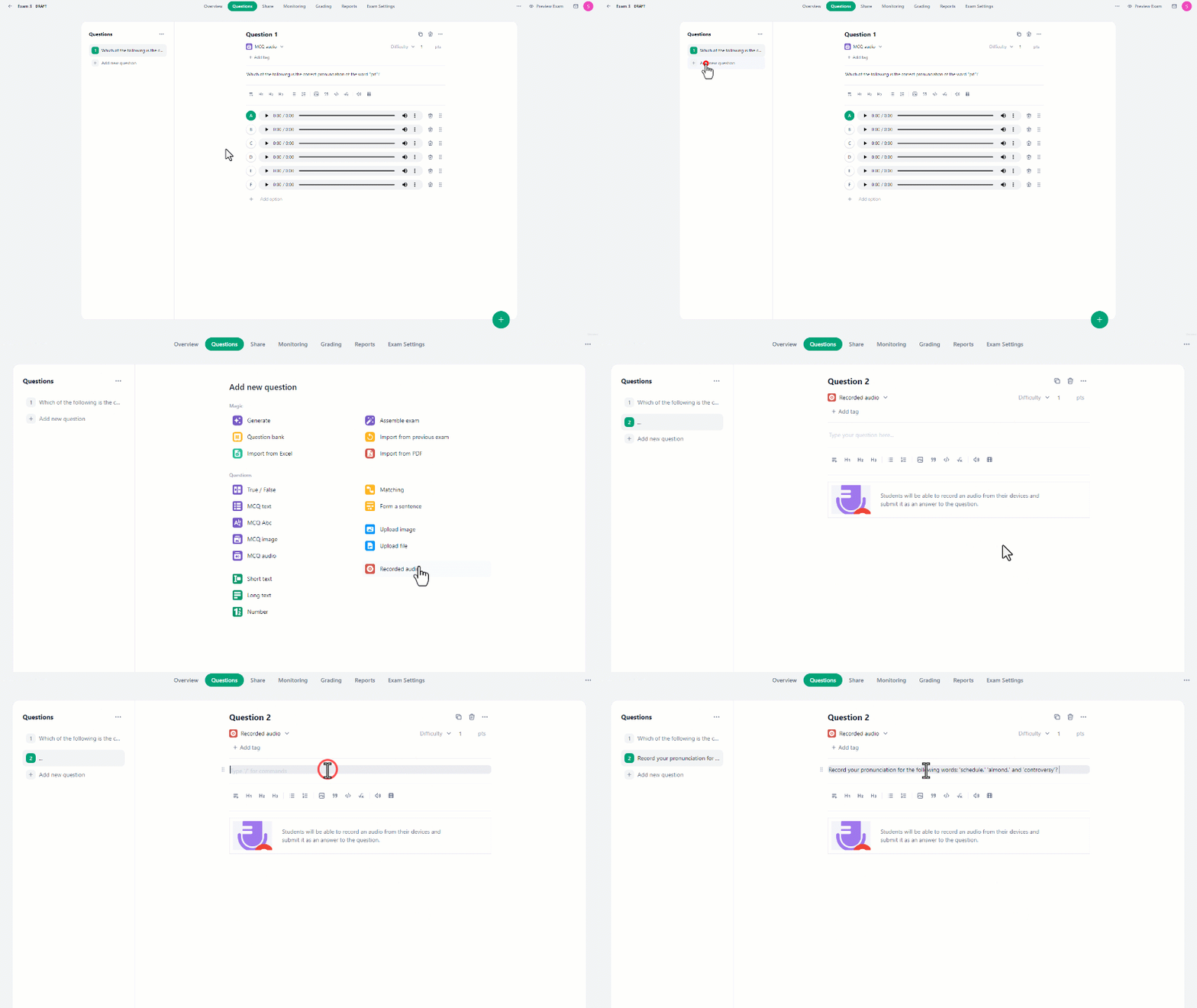
- In the Questions tab, click on the “Add new question” button.
- Then under Questions, select “Recorded Audio”.
- This will direct you to the interface where you can formulate your question.
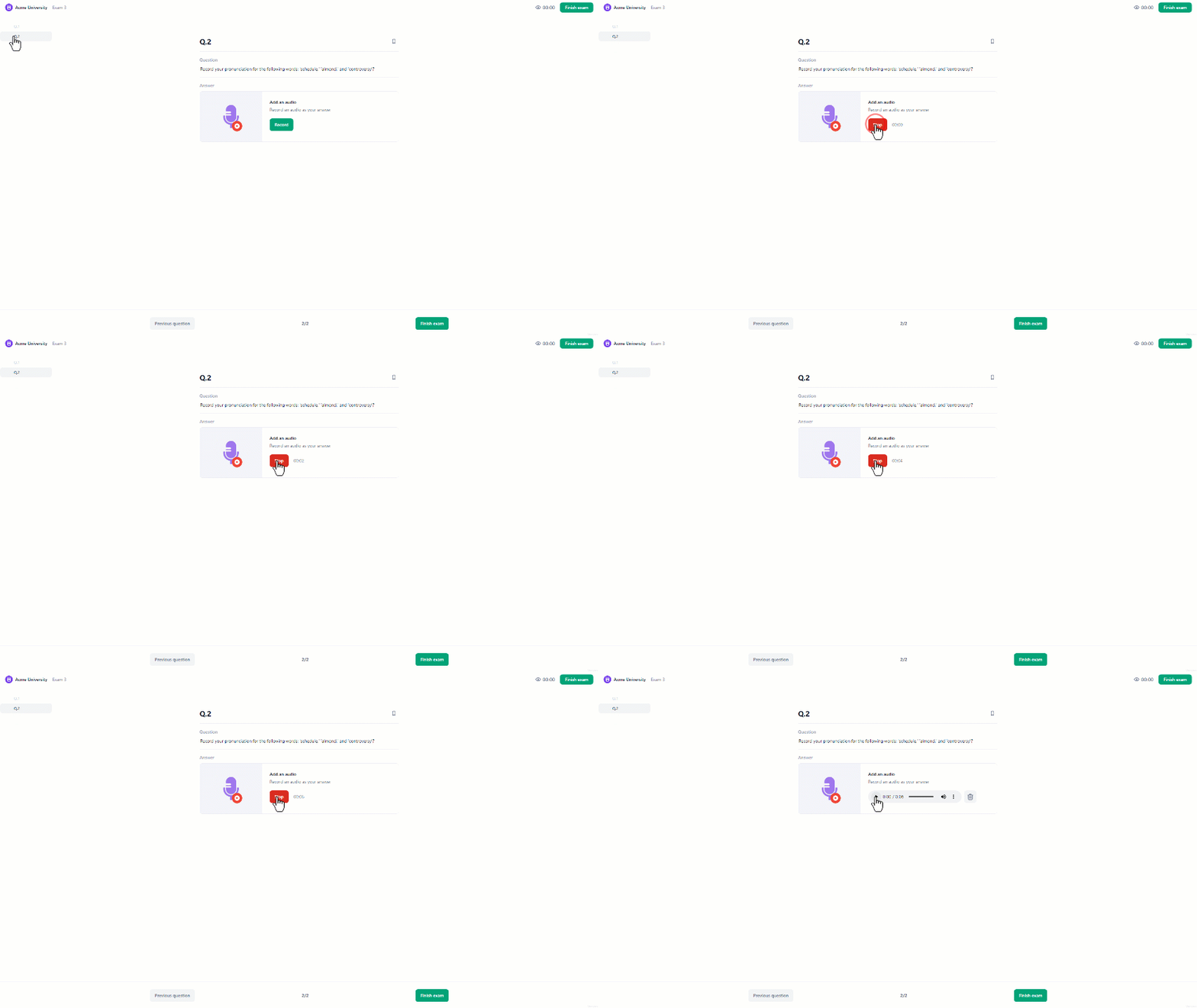
 To preview the question from the student’s perspective:
- At the top right corner, click on “Preview Exam”.
- Choose either Smartphone or Desktop view and click “Preview”.
- On the instructions page, click “Enter Exam” to start previewing.
- Locate the question with the same number as where you created it.
- In the answer section, students can start recording their answers by clicking the “Record” button.
- Students can listen and re-record their audio recordings as much as they need.