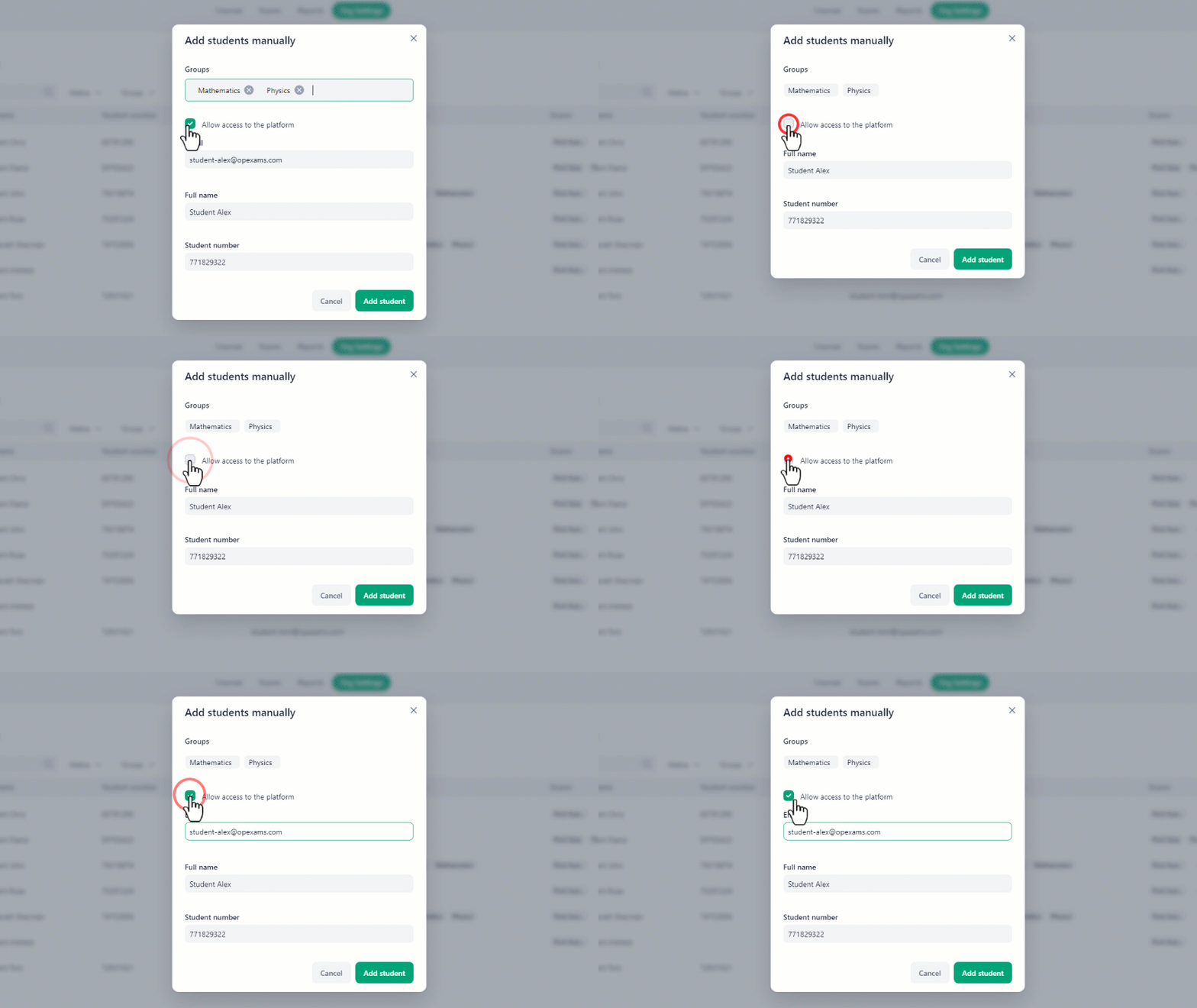

To add students manually to the organization:
- At the home page, navigate to organization settings.
- On the left side of the screen select students.
- In there, click on Add Students and select manually.
- Fill out the required information such as the student’s email address, full name, and student number.
- Then click on the Add Student button to complete the process.
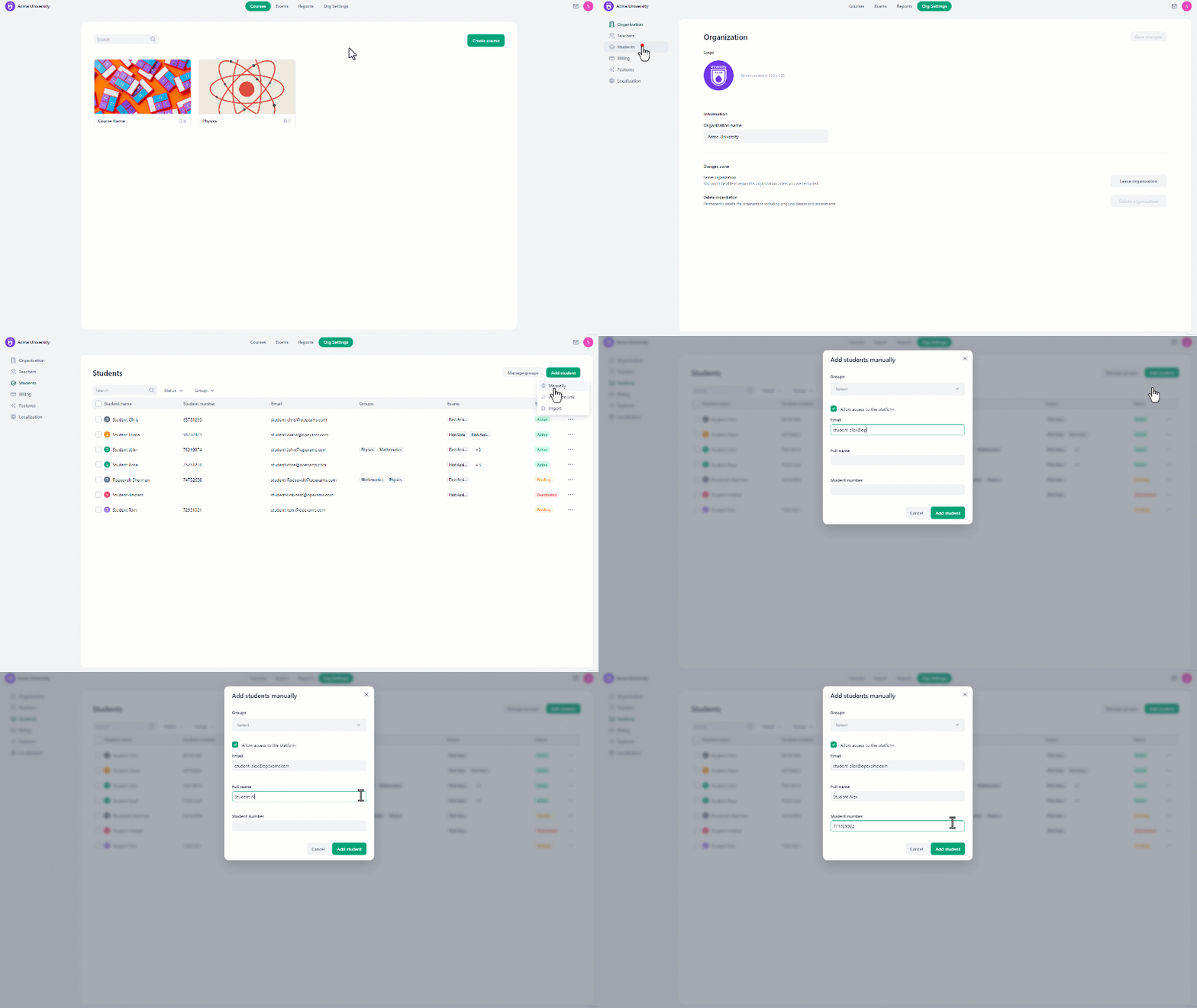 You can choose to assign the student to specific groups by selecting it from the groups dropdown menu during enrollment, you can skip it if the groups are not defined yet.
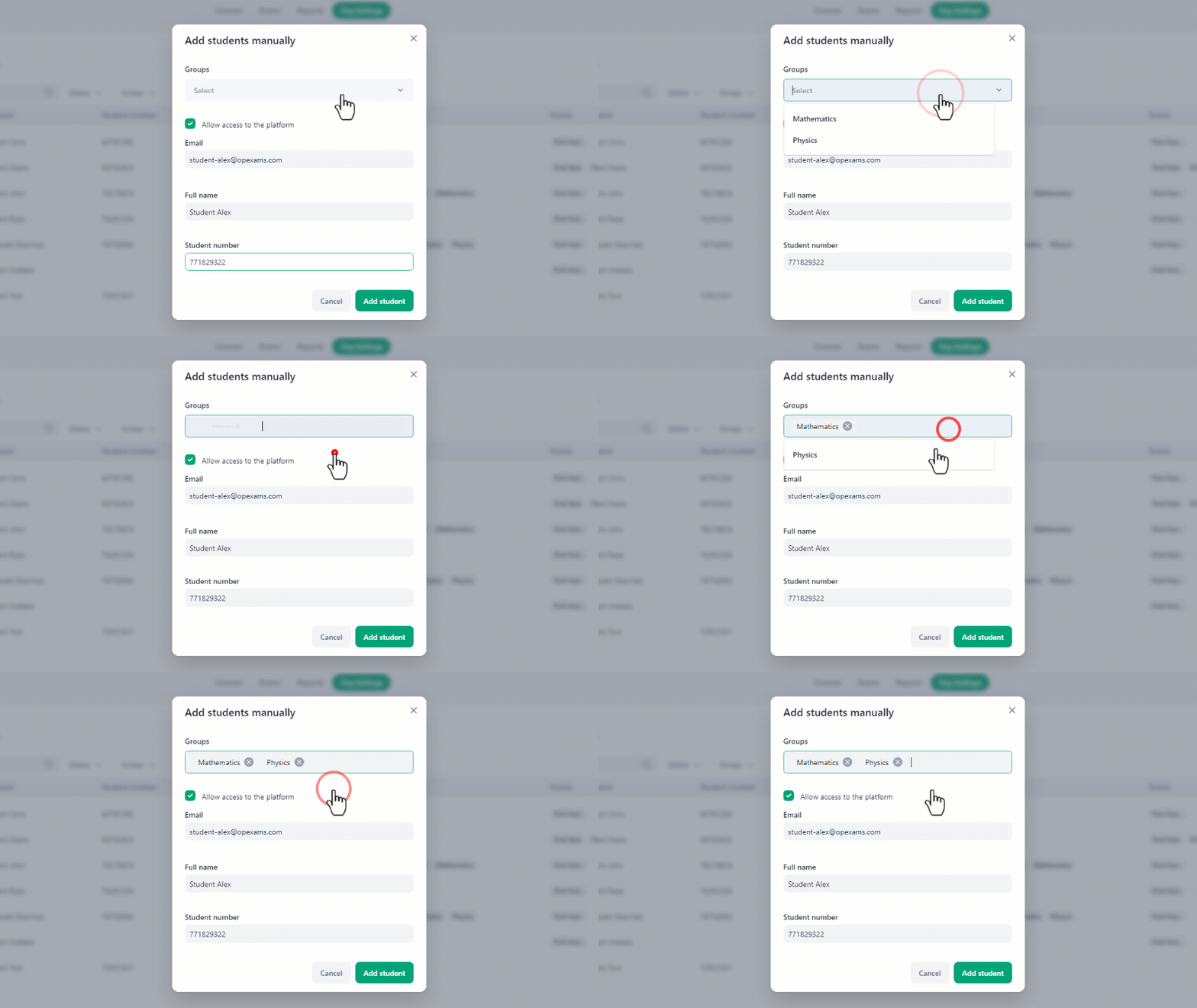 If you don’t want the student to get an invitation email or you don’t want to provide them access to the platform, simply uncheck the “Allow access to the platform” checkbox before clicking the Add Student button.