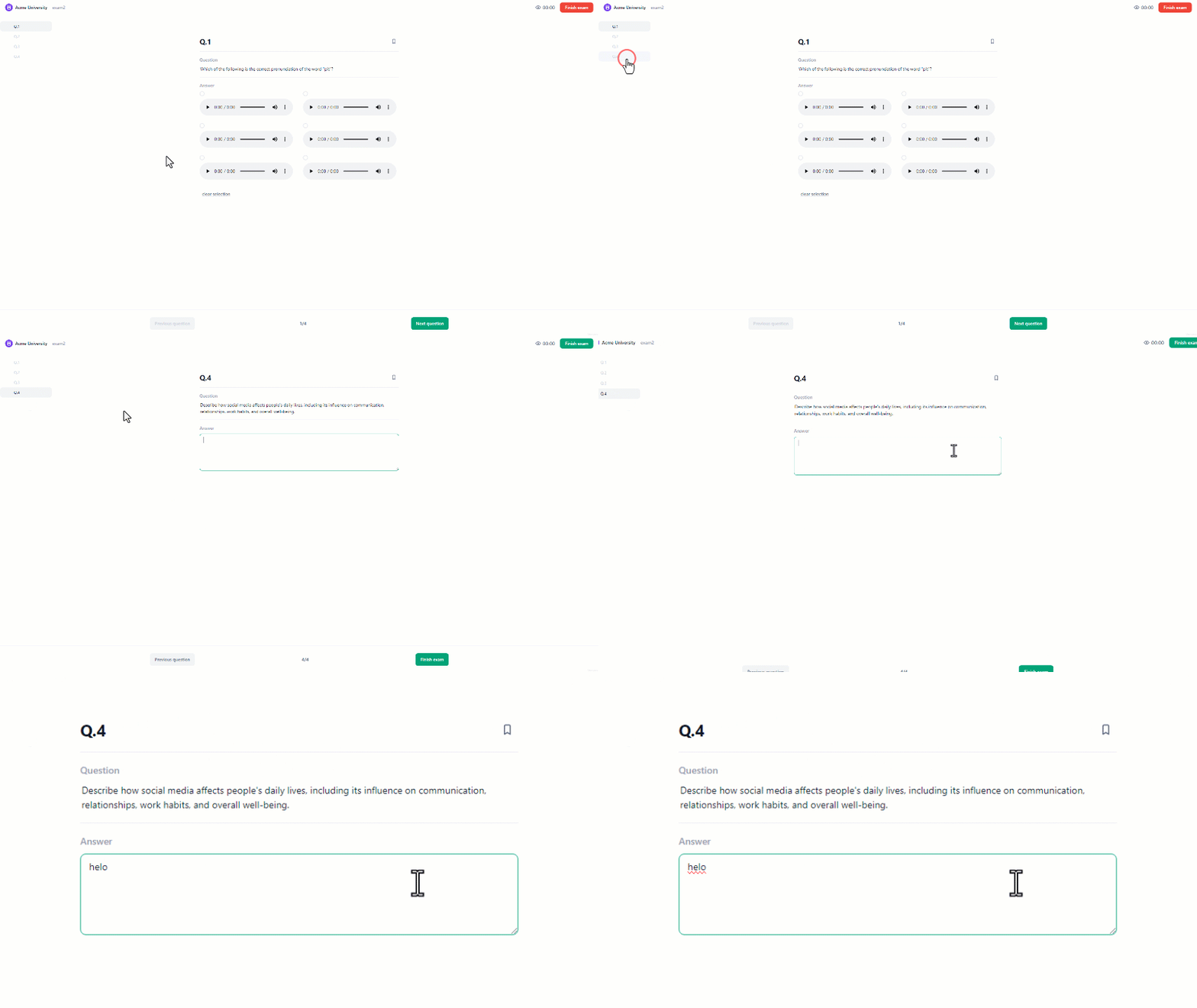

- In the Questions tab, click on the “Add new question” button.
- Then under Questions click on the “Long Text” option.
- This will direct you to the interface where you can formulate your question.
Paper long text question:
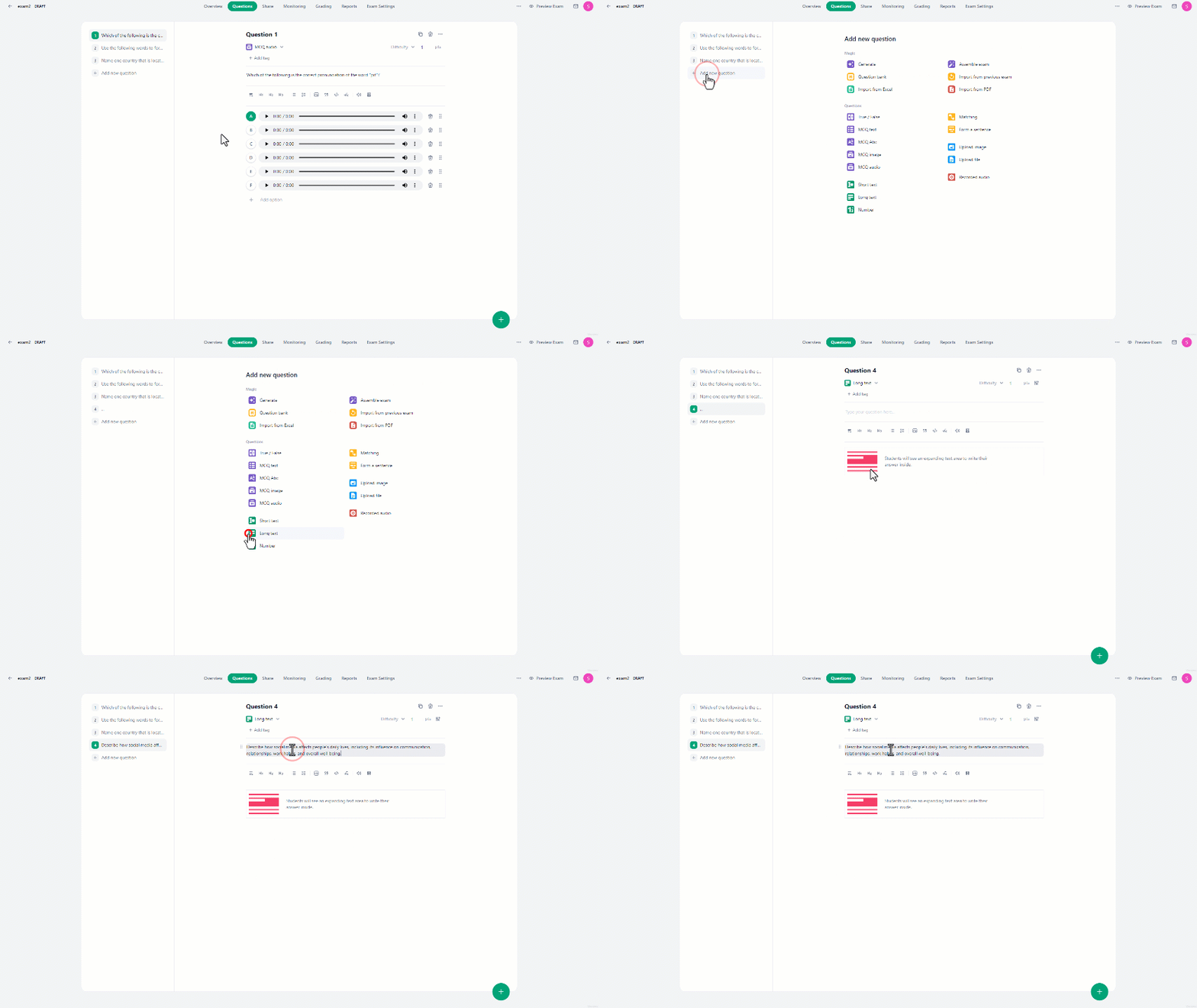
In paper-type long text questions, you can control the size of the answer field in the print settings to ensure students have enough space to provide a detailed and comprehensive answer. To modify the answer field in paper-type long text:- From the question creation interface, navigate to the “Print” tab.
- Find the question and left-click the corner of the text field to adjust the size of the area.
Online long text question:
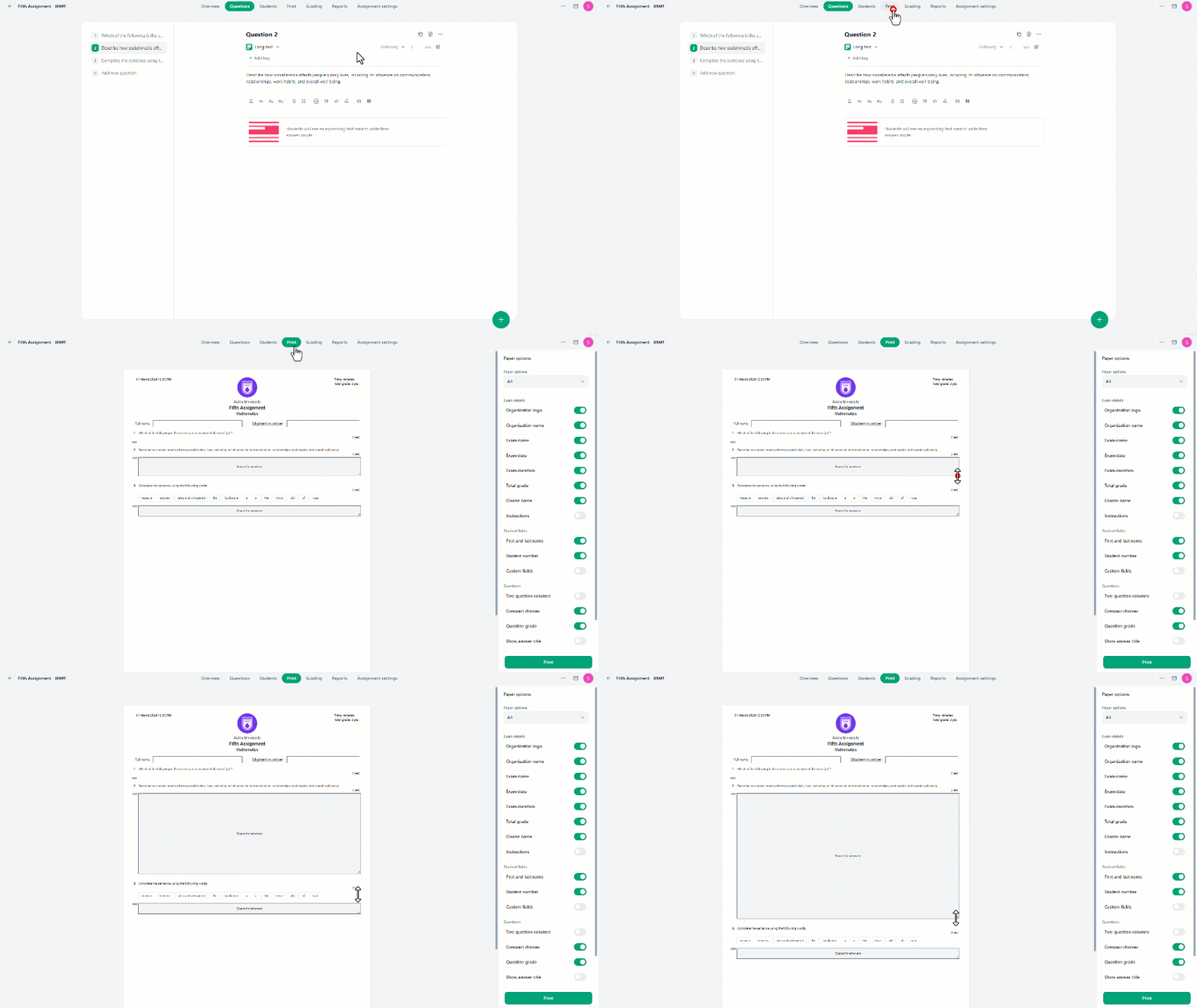
If you are creating a long text question for an online exam, you can activate Allow spell check, Which enables the default spell-check feature of students’ devices during exams. To activate the spell-check feature, click on the answer options icon next to the points, then activate the switch next to it.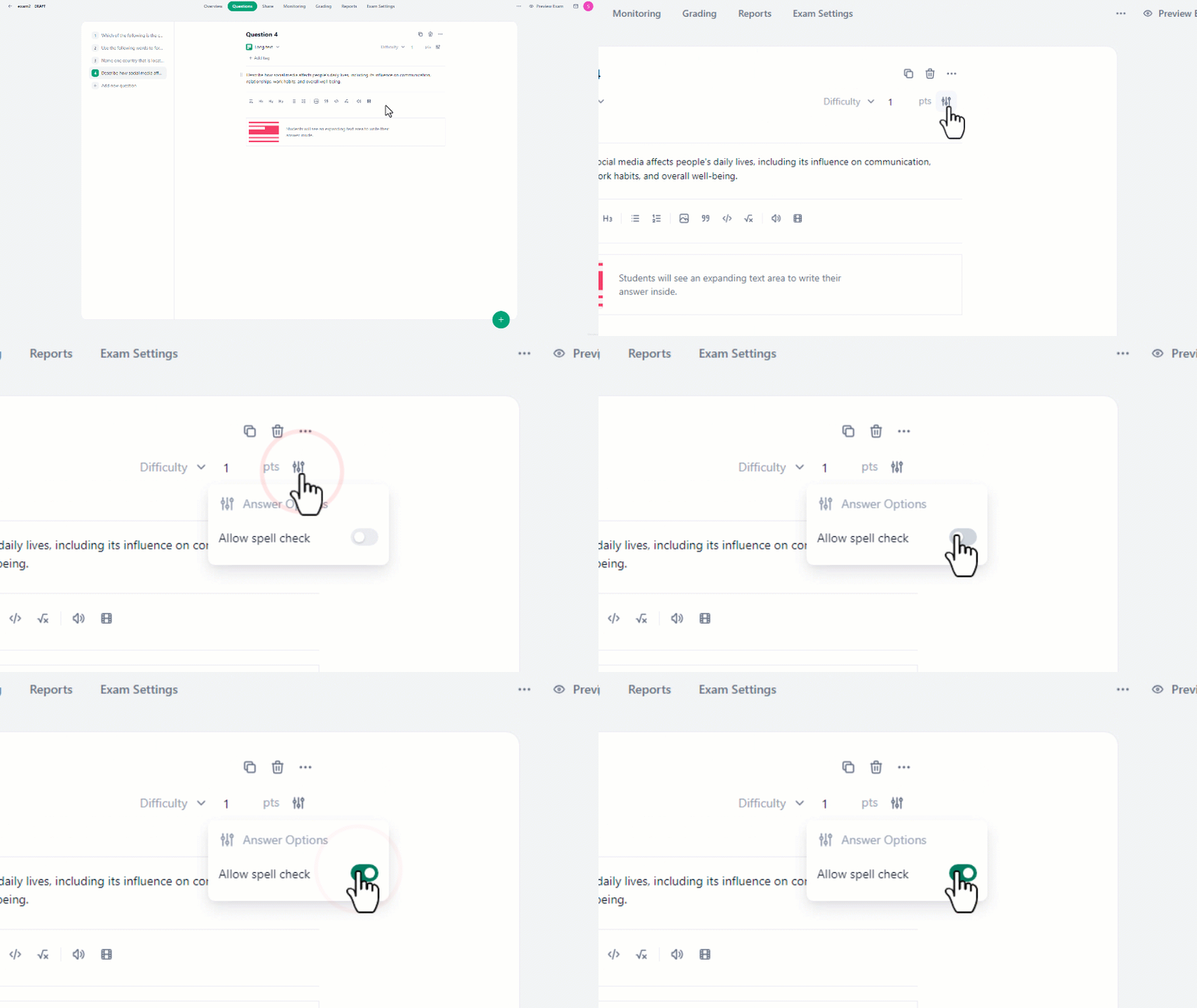 To view how Spell Check from the student’s perspective:
- Enable Spell Check from the answers options menu.
- Navigate to the exam preview and locate the question.
- Start writing in the answer field, if the students make a typo, they will see a red line under it.