
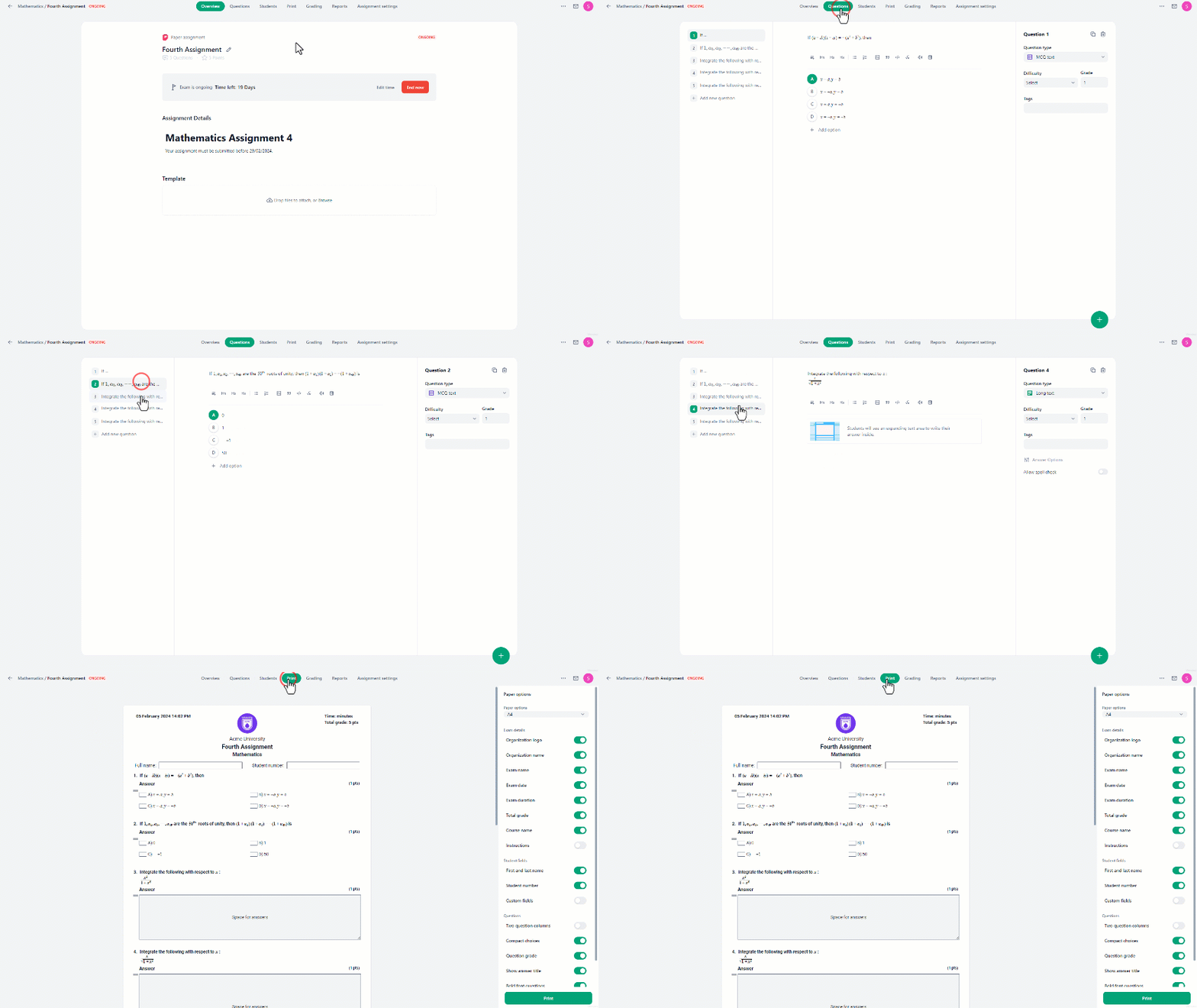
- Firstly, add questions using the “Questions” tab.
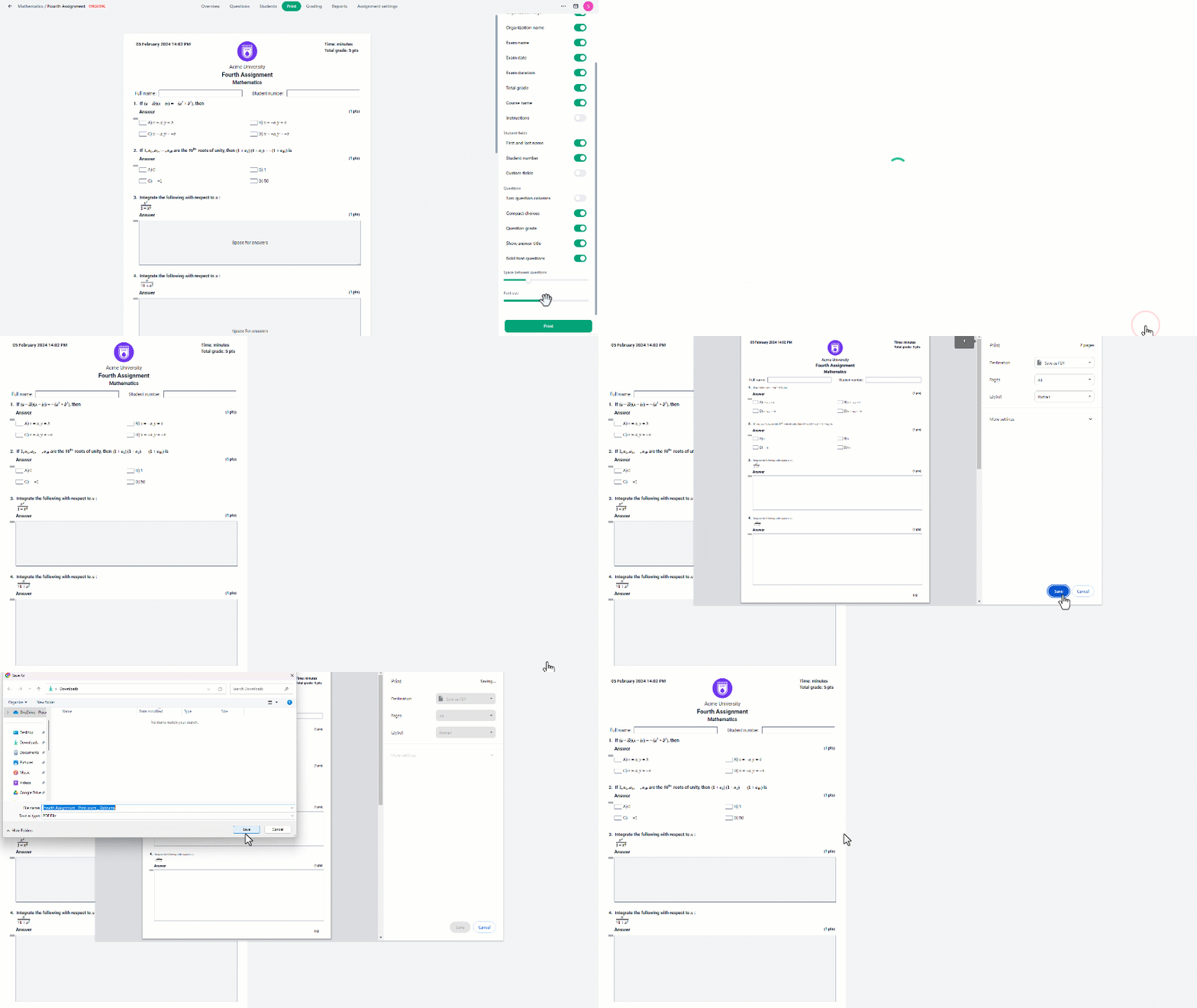
- Once adding questions is complete, click on the “Print” button located at the top of the screen.
- At the “Print” tab, various customizable settings help you recreate the paper layout how you prefer.
**The customizable settings are: **
Paper Options:
- **Paper Size: **lets you choose the size of the printable paper.
Exam Details:
- Organization logo:* *displays your organization logo.
- Organization name: displays the name of your organization.
- **Exam name: **displays the name of the exam.
- Exam date: displays the date of the exam.
- **Exam duration: **displays the exam duration.
- **Total grade: **displays the total grade for the exam.
- **Course name: **displays the name of the course.
- **Instructions: **adds a text box to write instructions for students.
Student Fields:
- **First and last name: **adds a text box for the student to write their name.
- **Student number: **adds a text box for the student number.
- **Custom fields: **allows you to add several text boxes with the ability to name each as desired.
Questions:
- **Two question columns: **changes the structure of the page to fit two columns of questions.
- **Compact choices: **when activated, it displays the multiple-choice answers on the same row.
- **Question grade: **shows the grade or point value for each question.
- **Show answer title: **displays the word “Answer” after each question.
- **Bold font questions: **applies bold formatting to the questions.
- **Space between questions: **adjusts the spacing between each question for better readability.
- Font size: lets you modify the size of the text.
**Answers fields: **
only appear for text-type answers, which you can modify the size of the text field depending on the length of each answer.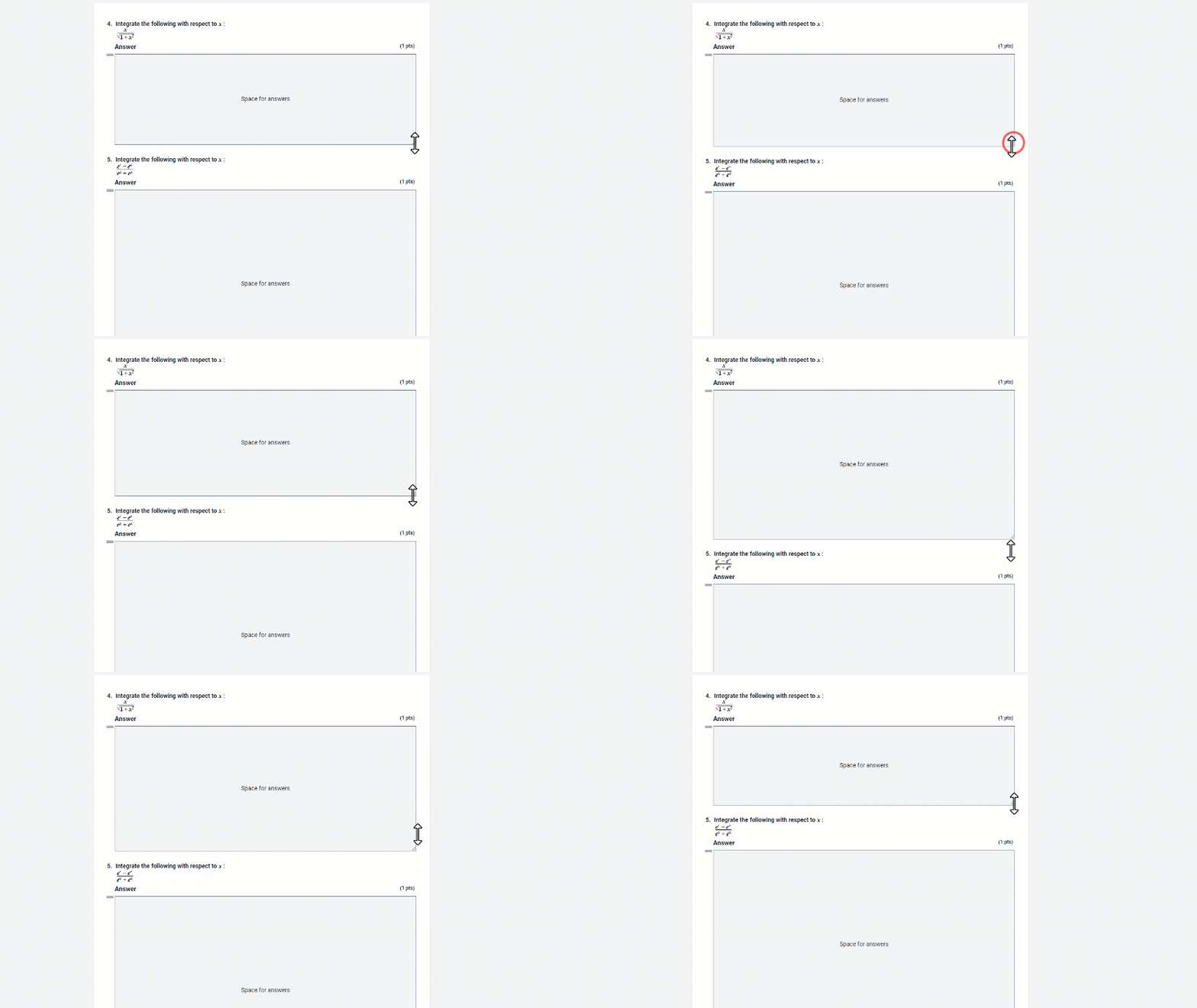 After customizing the paper exam as desired, reviewing all questions and formatting is important to ensure accuracy.
Once completed, click the print button to export the document as a PDF file.
After customizing the paper exam as desired, reviewing all questions and formatting is important to ensure accuracy.
Once completed, click the print button to export the document as a PDF file.