
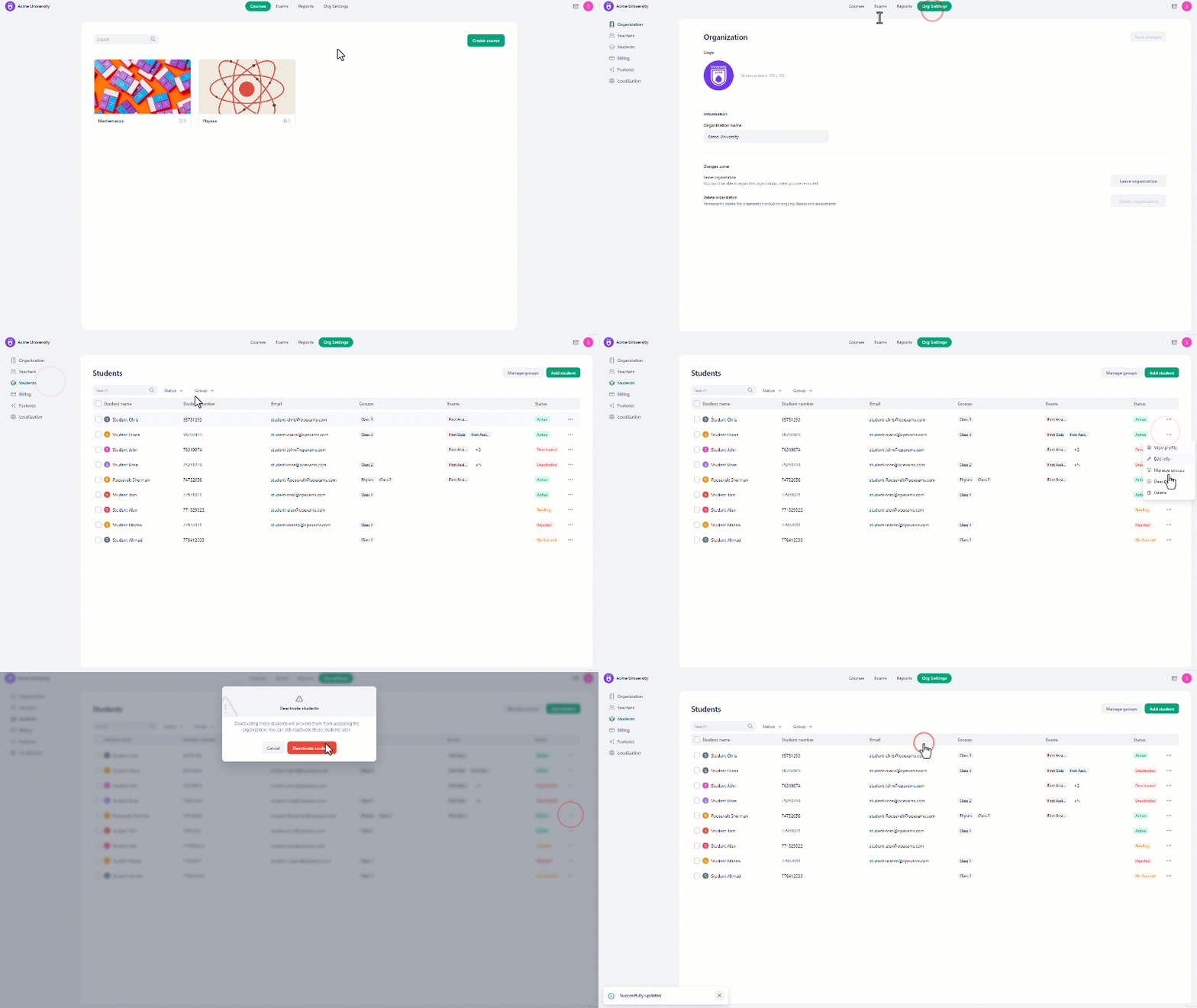
To deactivate a student’s account:
- At the **home page, **navigate to “Organization settings”.
- On the left side of the screen, select “Students”.
- Click on the **three-dot icon **to the right of the student’s name.
- From the drop-down menu, select “Deactivate”.
- A confirmation message will pop up, click “Deactivate Students” to complete the process.
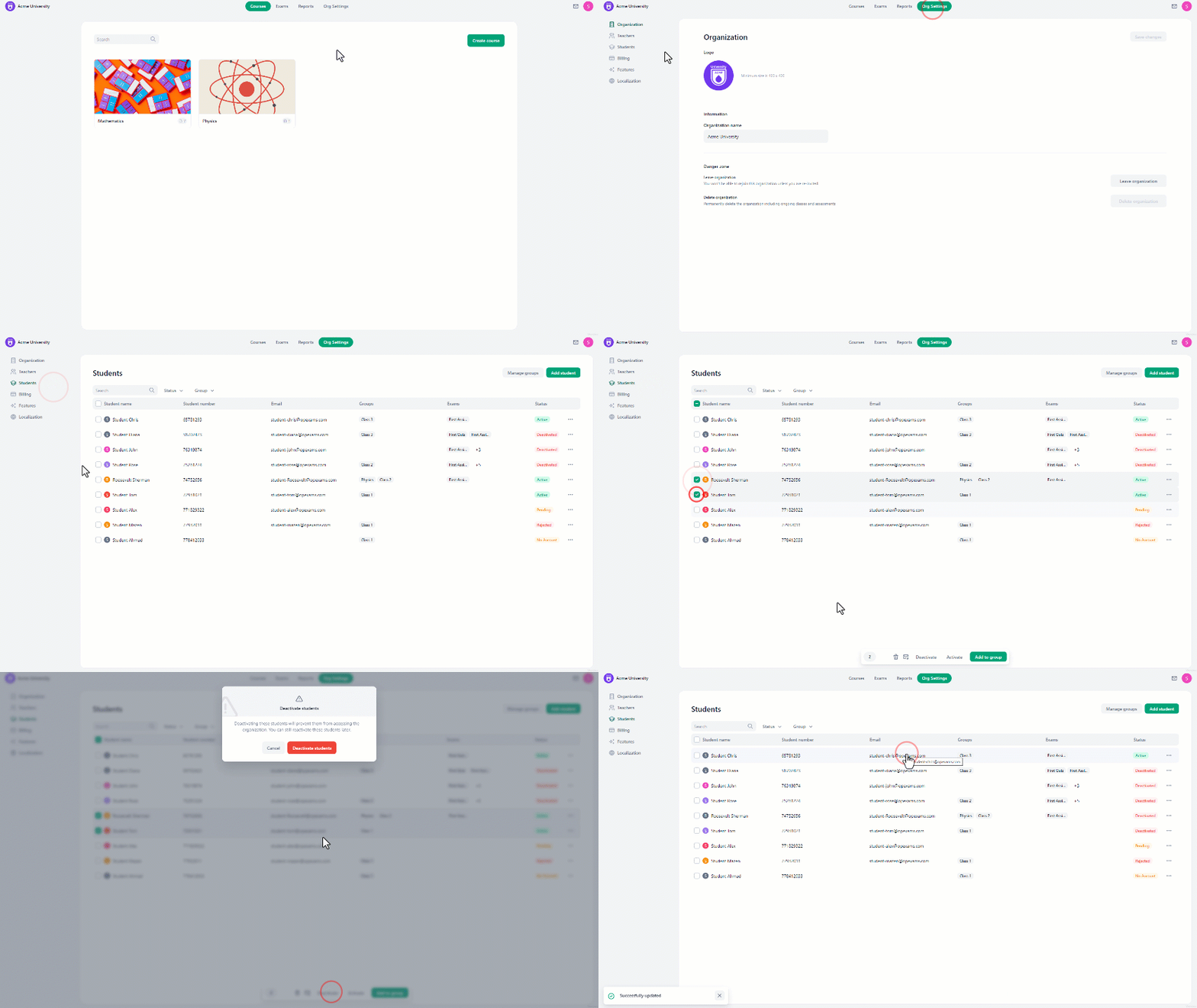
To deactivate multiple students’ accounts:
- At the **home page, **navigate to “Organization settings”.
- On the left side of the screen, select “Students”.
- **Select the students **you want to deactivate.
- At the bottom of the screen, click on “Deactivate”.
- A confirmation message will pop up, click “Deactivate Students” to complete the process.