

- Navigate to the course you want to add members to.
- Click on the “Course Settings” tab in the top navigation bar.
- In the left sidebar, select “Teachers”.
- Click the “Add teacher” button in the top right corner.
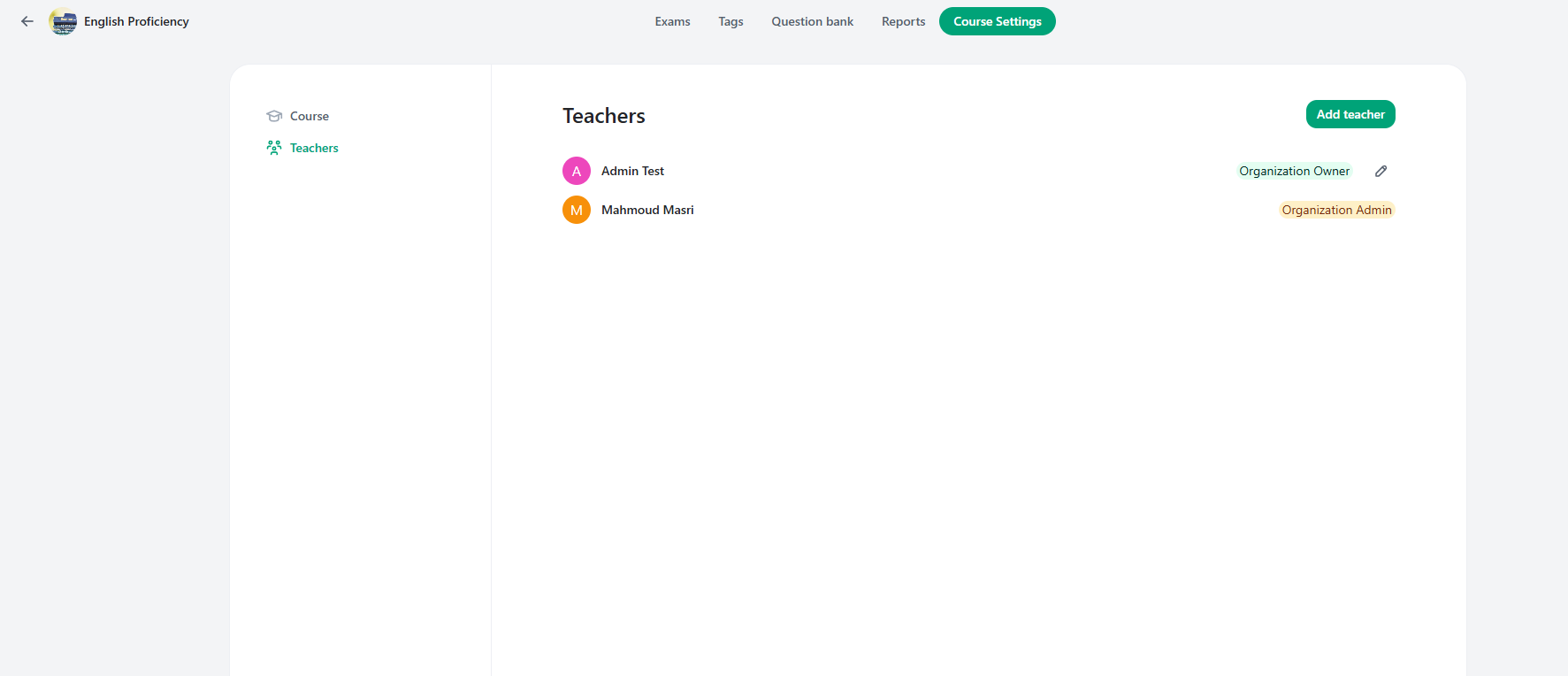
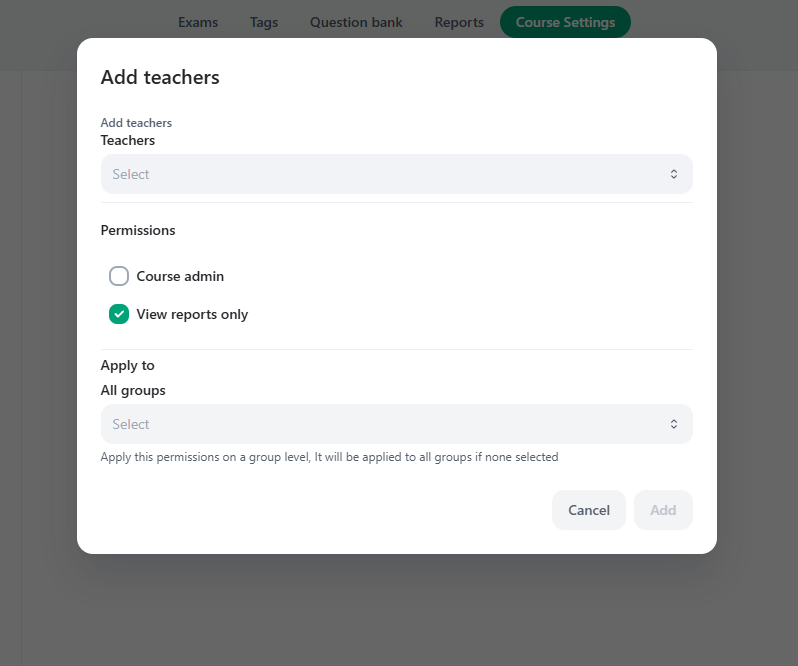
Adding Members Dialog
The “Add teachers” dialog will open, allowing you to:1. Select Members
- Use the search field to find and select teachers or supervisors from your organization.
- You can select multiple members at once.
- Note: Only members with the Teacher or Supervisor role can be added to courses. Organization Owners and Admins already have automatic access to all courses and cannot be added through this dialog.
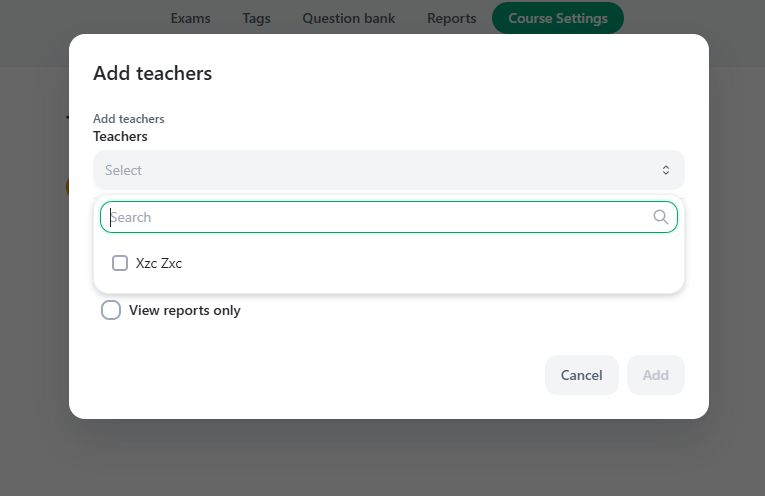
2. Assign Permissions
After selecting members, you need to assign their permissions for the course. There are two main permission types:Course Admin
- Grants full administrative access to the course
- Allows creating and modifying exams, managing students, grading, and all other course management tasks
- This is the default permission for regular teachers
View Reports Only
- Provides read-only access to view course reports and analytics
- Does not allow creating or modifying content
- Suitable for members who need to monitor course progress without editing capabilities
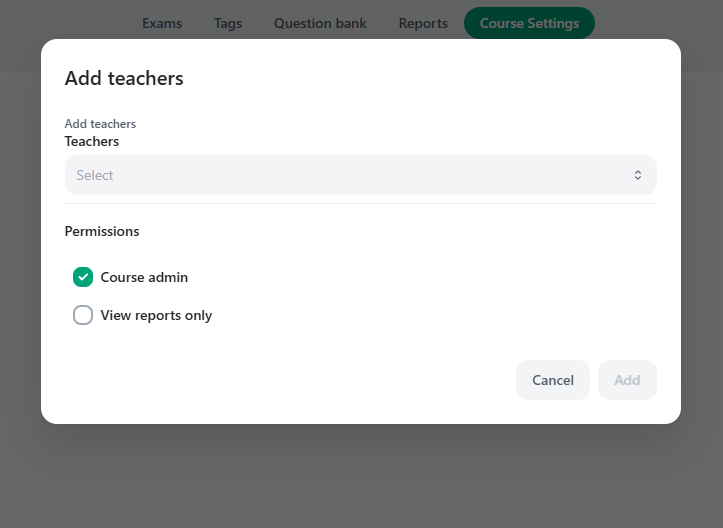
3. Supervisor Members
If you select a member with the Supervisor role (organization-level viewer):- The Supervisor permission is automatically assigned
- You’ll see a message indicating: “Supervisor permission is automatically assigned to supervisor type members”
- This permission cannot be changed - supervisors always have read-only access
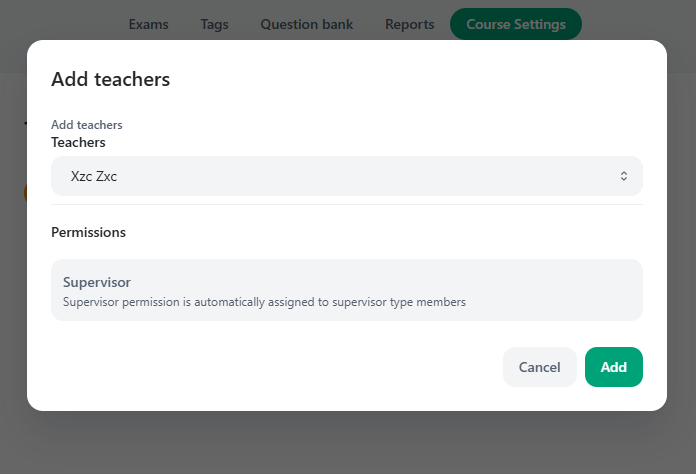
4. Apply to Groups (Optional)
For members with “View Reports Only” permission, you can optionally specify which student groups they should have access to:- Select one or more groups from the dropdown
- If no groups are selected, the member will have access to all groups in the course
- This allows you to limit access to specific groups if needed
5. Complete the Addition
- Review your selections (members, permissions, and groups if applicable)
- Click “Add” to add the selected members to the course
- The members will now appear in the Teachers list with their assigned permissions
Important Notes
- Organization-level vs Course-level: Adding a member to the organization does not automatically grant them access to courses. Teachers and Supervisors must be added to each course individually.
- Permission Changes: You can modify a member’s permissions after adding them by clicking on their role tag in the Teachers list.
- Inviting New Members: If a member is not yet in your organization, you’ll see an option to invite them first. Click “Invite Members” to add them to the organization before adding them to the course.