

When You’ll See the Banner
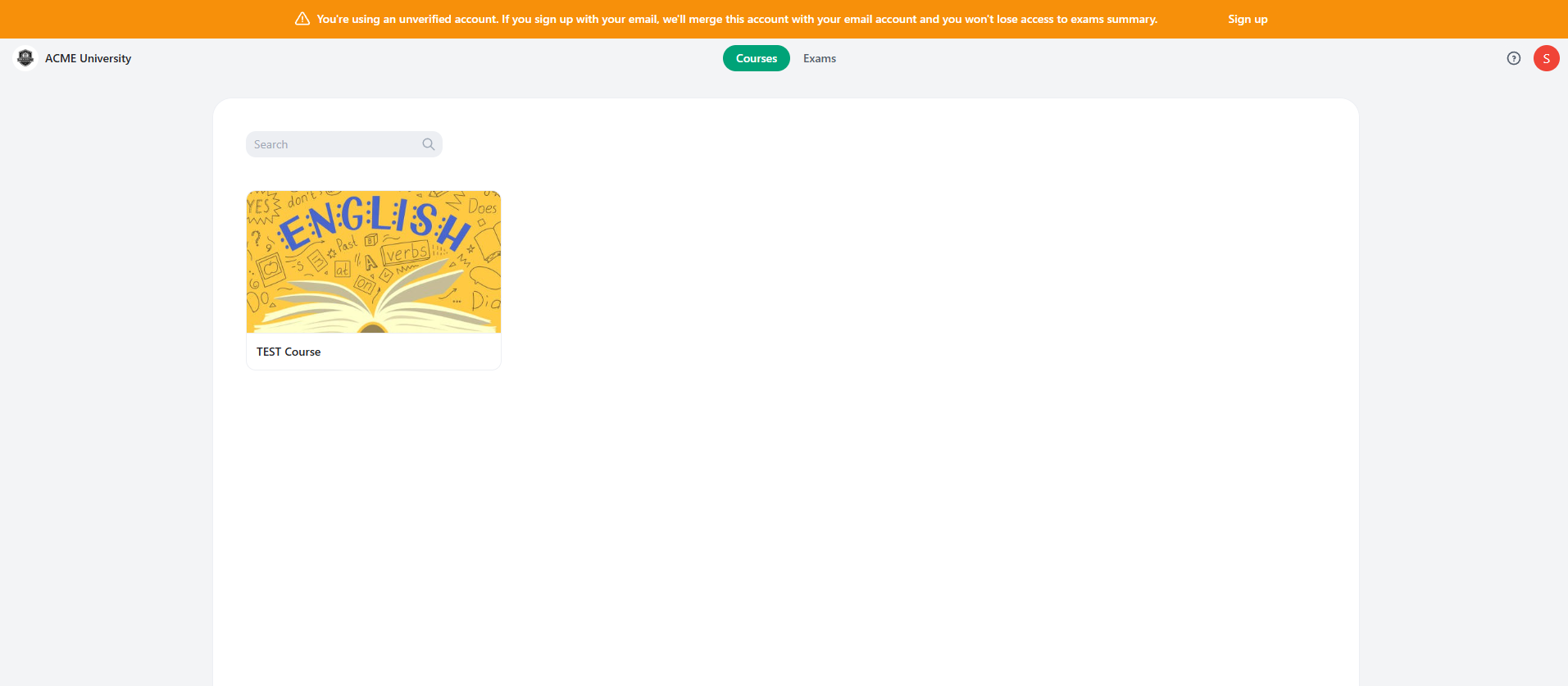
The system displays a banner when:- You’re logged in as a student
- Your account doesn’t have an email address (unverified account)
What Gets Merged
When you merge accounts, the following information from your no-email account will be preserved:- All exam attempts - Every exam you’ve taken
- Grades and scores - All your exam grades and results
- Group memberships - All groups you were part of
- Exam history - Complete record of your exam participation
- Student answers - All your submitted answers
How to Merge Your Account
- See the Banner When you’re logged in with a no-email account, you’ll see a banner at the top of your screen that says: “You’re using an unverified account. If you sign up with your email, we’ll merge this account with your email account and you won’t lose access to exams summary.” The banner includes a “Sign up” button on the right side.
-
Click the Sign Up Button
Click the “Sign up” button in the banner. This will log you out and redirect you to the account creation page.
Important: After clicking “Sign up”, you must complete the signup or login process in the same browser tab. Do not open a new tab or navigate away, as the system needs to track your old account ID through the URL to merge your data.
-
Sign Up or Login with Email
You’ll be redirected to the account creation/login page. Stay in the same browser tab and either:
- Create a new account using your email address, or
- Login if you already have an OpExams account with that email
Do not open a new tab or close this browser tab. The system needs to track your old account ID through the URL parameter (old-user-id), which is only available in the same tab where you clicked the “Sign up” button. -
Account Merge Happens Automatically
Once you sign up or login with your email address, OpExams automatically detects your previous no-email account using the
old-user-idparameter and merges them together. All your previous data (exams, grades, groups) will now be associated with your new email account. -
Verify Your Data
After the merge is complete, verify that all your information is present:
- Check your exam history
- Review your grades
- Confirm your group memberships
- Verify your exam summaries are accessible
Important Notes
The account merge happens automatically when you sign up or login with an email address. You don’t need to do anything special - just click the “Sign up” button in the banner and complete the signup/login process in the same tab.
Critical: You must complete the entire signup/login process in the same browser tab where you clicked the “Sign up” button. If you open a new tab, close the tab, or navigate away, the system will not be able to merge your old account data because it won’t have access to your old user ID.
Why Same Tab Matters
The system uses a URL parameter (old-user-id) to track your previous account. This parameter is only available in the same browser tab where you clicked the “Sign up” button. If you:
- Open the signup page in a new tab
- Close the browser tab
- Navigate to a different page
old-user-id parameter will be lost, and the system won’t be able to merge your accounts.
Troubleshooting
I Don’t See My Old Exams After Merging
If you don’t see your previous exam data after merging:- Make sure you clicked the “Sign up” button from the banner (didn’t manually navigate to signup)
- Verify you completed the signup/login process in the same browser tab (didn’t open a new tab or navigate away)
- Check that you used the same email address consistently
- Contact your instructor or OpExams support if the issue persists
I Accidentally Opened a New Tab
If you opened the signup page in a new tab:- Close the new tab
- Go back to the original tab where you clicked “Sign up”
- Complete the signup/login process in that original tab
- The system will be able to merge your accounts correctly
The Banner Disappeared
If the banner disappeared:- Make sure you’re logged in as a student
- Verify your account doesn’t have an email address
- Refresh the page - the banner should reappear if you meet the conditions
- If it still doesn’t appear, you may have already merged your account or your account already has an email