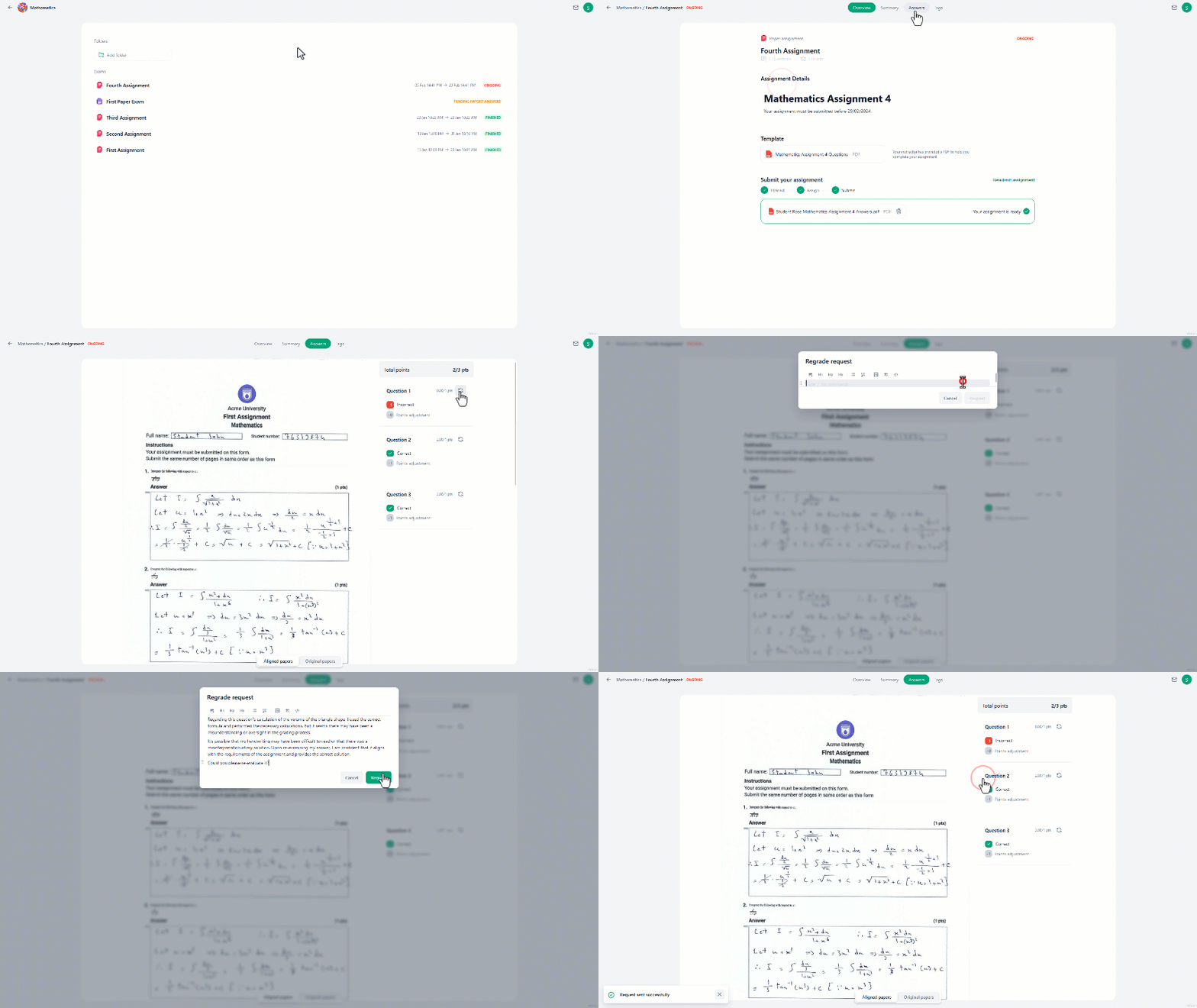

- Navigate to the exam/assignment.
- Go to the “Answers” tab located at the top center of the screen.
- On the right side, you’ll see each question along with the grade assigned to it.
- Look for the re-grading request icon (🔄️) next to the question you want to be re-graded, and click on it. This will open a dialogue box.
- In the dialogue box, explain your concerns and provide any supporting evidence. Be specific in your request to help the instructor understand your concerns effectively.
- Once you’ve submitted your request, the instructor will be able to see your comments.
- Once the instructor has evaluated your request, you can check for the instructor’s response in the “Answers” tab next to the question, where you can see the updated grade and the instructor’s feedback. Additionally, you’ll receive an email from the instructor containing their comments.